Complete Guide to Gaming Monitor Settings
From refresh rate to overdrive modes — every monitor setting explained and optimized for competitive and casual gaming.
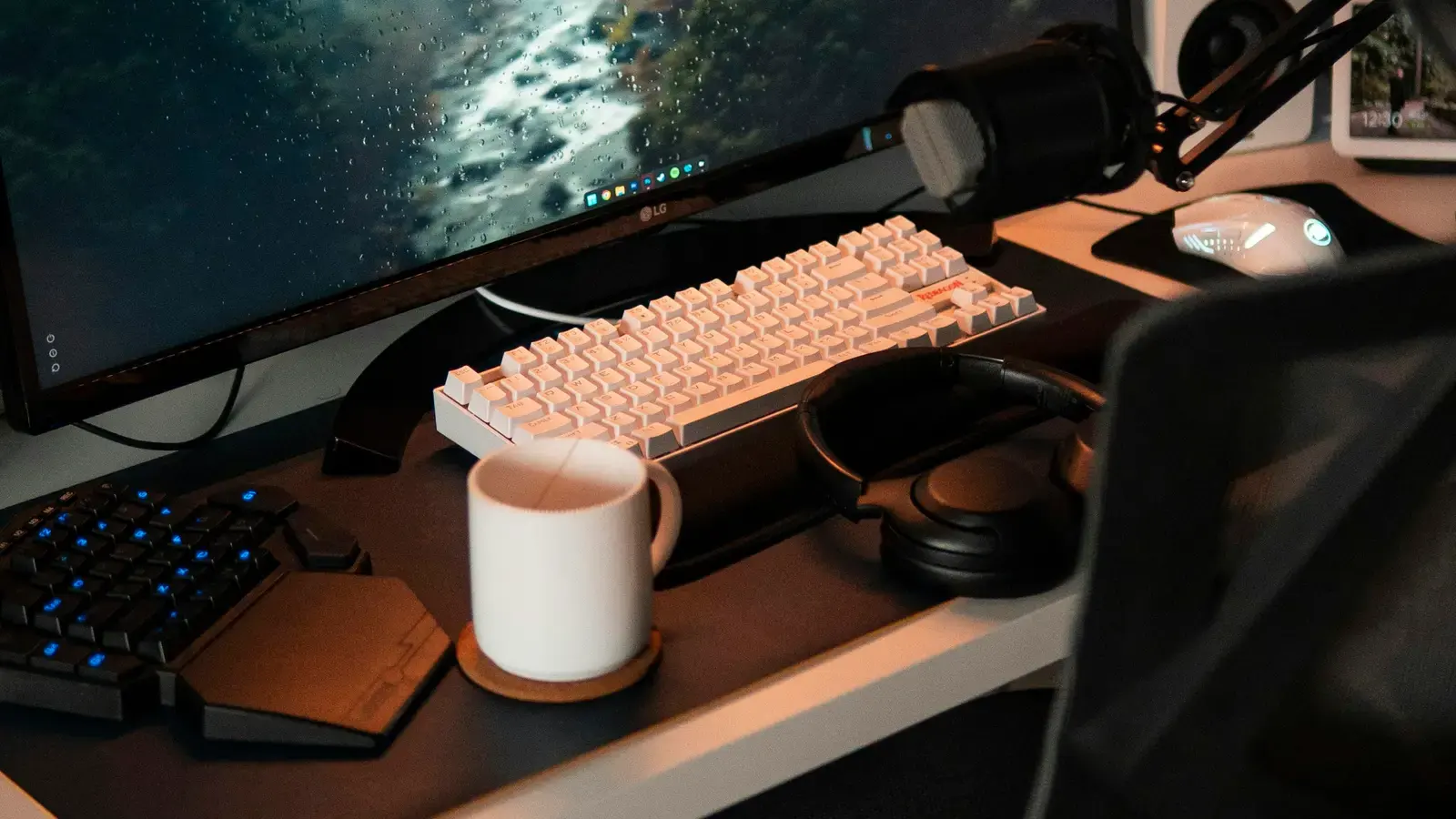
A high-end gaming monitor is only as good as its configuration. Many gamers plug in their new display and start playing without realizing that default settings often leave significant performance and image quality on the table. This guide covers every important monitor setting and explains how to optimize it for gaming.
Refresh Rate
Refresh rate is the most critical setting and the first thing to verify. Many monitors ship with their refresh rate set to 60Hz by default, even if they support 144Hz, 240Hz, or higher. In Windows, right-click the desktop, select Display Settings, then Advanced Display Settings, and set the refresh rate to the maximum supported value. In NVIDIA Control Panel or AMD Adrenalin, verify that the selected resolution and refresh rate match your monitor's maximum capability.
Response Time and Overdrive
Response time or overdrive settings control how quickly pixels change color. Most gaming monitors offer multiple overdrive levels — typically labeled as Off, Normal, Fast, and Fastest (or similar). Higher overdrive reduces motion blur by speeding up pixel transitions, but too much overdrive causes inverse ghosting — a bright halo trailing behind moving objects that looks worse than the smearing it attempts to fix. Start at the Normal or Fast setting and test with UFO Test in your browser. Increase overdrive only if you see noticeable trailing, and decrease if you see bright overshoot halos.
Adaptive Sync
Adaptive sync (G-Sync or FreeSync) should be enabled for most gaming scenarios. Adaptive sync matches your monitor's refresh rate to your GPU's frame output, eliminating screen tearing without the input lag penalty of V-Sync. Enable it in your monitor's OSD menu and in your GPU driver settings. Note that G-Sync Compatible mode on FreeSync monitors works well in most cases but may require testing for flickering or blanking issues at the edges of the sync range.
Brightness and Contrast
Brightness and contrast should be calibrated for your room lighting. In a dark room, a brightness setting of 120-150 nits is comfortable and preserves dark detail. In a well-lit room, 200-300 nits may be necessary. Contrast should generally be left at the default setting or slightly reduced — increasing contrast beyond the default often crushes dark details, making shadows appear as uniform black blobs where you cannot distinguish enemy characters.
Colour Temperature
Color temperature is a matter of preference, but most competitive players use a slightly warm setting of 6500K, which corresponds to the standard D65 white point. Cooler settings above 7000K give a bluish tint that some find harsher on the eyes during long sessions. Warmer settings below 6000K appear yellowish and can make colors look inaccurate. For competitive advantage, some players increase digital vibrance in their GPU driver settings to make enemy character models stand out more against backgrounds.
Black Equalizer and Shadow Boost
Black equalizer or shadow boost settings are found on many gaming monitors and artificially brighten dark areas of the image. This makes it easier to spot enemies hiding in shadows at the cost of washed-out image quality. For competitive games where visibility is paramount, a moderate black equalizer setting can provide a meaningful advantage. For single-player games where visual immersion matters, disable it entirely.
Motion Blur Reduction
Motion blur reduction (also called backlight strobing, DyAc on BenQ, ULMB on NVIDIA, or ELMB on ASUS) works by rapidly flashing the backlight in sync with the refresh rate. This produces CRT-like motion clarity with virtually zero perceived blur. The trade-off is reduced maximum brightness, typically by 30-50%. Motion blur reduction and adaptive sync are usually mutually exclusive, though some newer monitors support both simultaneously. For competitive play at high frame rates, motion blur reduction provides a noticeable clarity improvement.
Input Lag and Gaming Mode
Input lag varies by monitor and settings. Enable gaming mode or low-latency mode in your monitor's OSD to bypass unnecessary image processing that adds delay. Disable any noise reduction, dynamic contrast, or motion smoothing features — these add processing latency without benefit for gaming. On monitors with measured input lag above 10ms, every unnecessary processing feature should be disabled.
Panel Uniformity
Panel uniformity is an often-overlooked aspect of monitor setup. Many IPS and VA panels exhibit backlight bleed or clouding that becomes visible in dark scenes. While you cannot fix a panel's physical uniformity, adjusting the brightness to an appropriate level rather than maximum helps reduce the visibility of these imperfections. If uniformity is severely uneven, the panel may be worth exchanging under warranty.
Resolution Scaling in Games
Resolution scaling in games should generally be set to match your monitor's native resolution. Running a game at a lower resolution than native on an LCD panel produces a blurry image because the monitor must interpolate between physical pixels. If you need more performance, use in-game resolution scaling features like DLSS or FSR, which render at lower resolution but upscale intelligently to your native resolution, producing a much sharper result than simply running at a lower output resolution.
Saving a Custom Profile
Save your optimized settings as a custom profile in your monitor's OSD if possible. This allows you to quickly switch between a gaming-optimized profile and a color-accurate profile for content creation or media consumption without reconfiguring everything each time.
Once your monitor is dialled in, AutoFull's M6 Ultra 2.0 gaming chair is worth a look for the rest of your setup.